Introduction
Creating eye-catching social media graphics is essential for effective digital marketing and brand growth. Strong visuals not only grab attention but also help communicate your message clearly and professionally.
Canva has become a go-to design tool for beginners and professionals alike, thanks to its user-friendly interface and versatile features. When paired with transparent PNGs, it allows users to create clean, polished, and visually appealing designs without complex editing. These background-free images make it easier to layer elements and achieve a professional look.
In this blog, we will guide you through the key steps to creating professional social media graphics in Canva using transparent PNGs - from understanding their role to optimizing your final designs.
Understanding Transparent PNGs and Their Role in Design
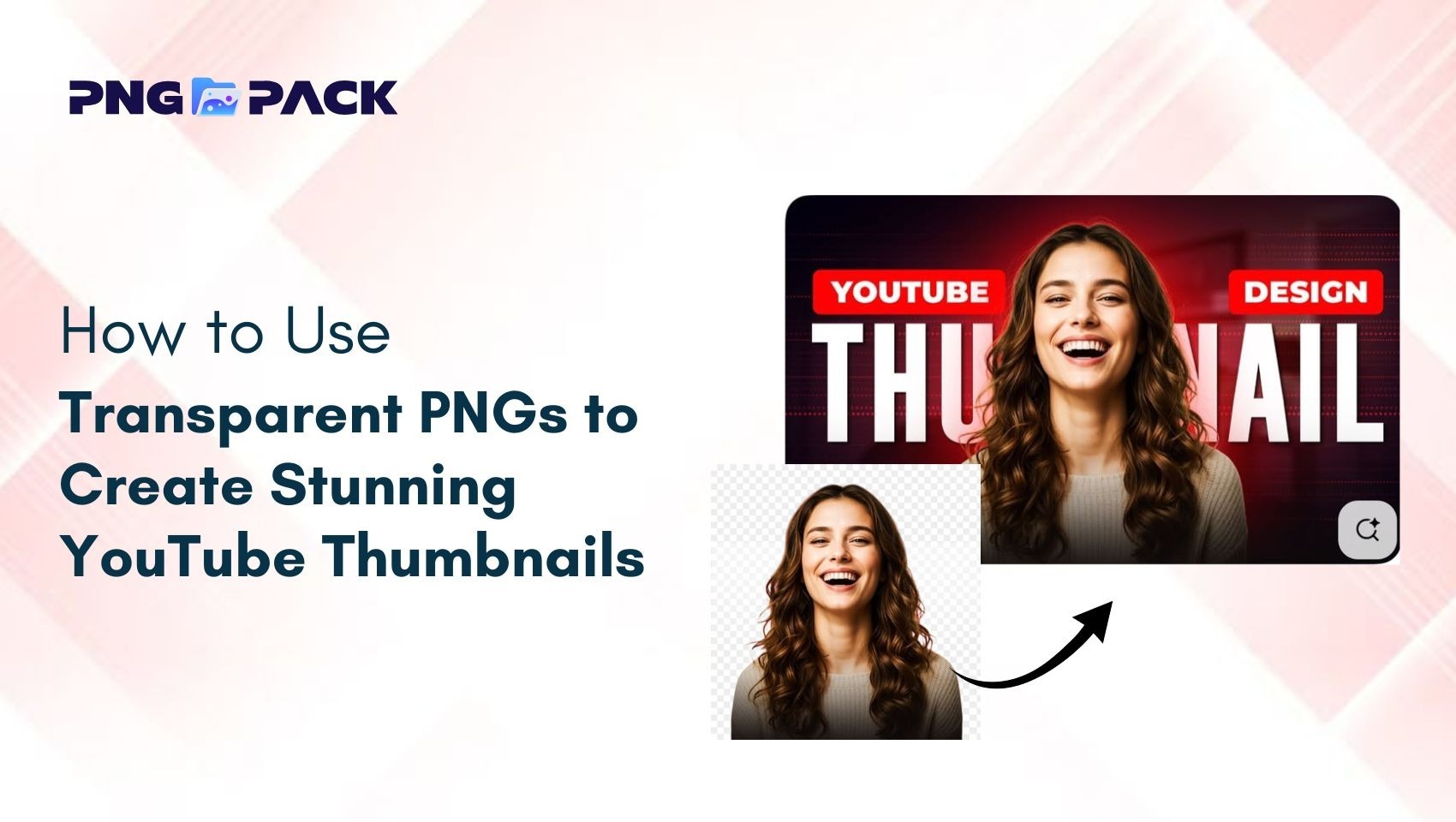
Transparent PNGs are image files that come without a background, allowing them to blend seamlessly into any design. Unlike JPG files, which have a fixed background, PNG files support transparency, making them highly flexible for creative use. This feature enables designers to layer images easily and create clean, professional visuals without additional editing.
These images are widely used across social media graphics, advertisements, presentations, and branding materials. Common applications include logos, icons, product cutouts, and decorative elements. Because transparent PNGs can be placed on any background without visible edges or borders, they help maintain a polished and modern look. By using transparent PNGs, designers can eliminate the need for manual background removal and focus more on layout, composition, and creativity - ultimately making the design process faster and more efficient.
Setting Up Your Canva Workspace Efficiently
A well-organized workspace is essential for creating professional designs in Canva. The first step is to choose the correct dimensions based on the platform you are designing for. Each platform - such as Instagram, Facebook, or LinkedIn - has specific size requirements, and selecting the right format ensures your graphics display properly without cropping or distortion.
Once your canvas is set, it is important to organize your design assets. Upload all required transparent PNGs in advance so they are easily accessible during the design process. Canva’s upload feature allows you to store and reuse elements, helping you maintain a smooth and efficient workflow.
Additionally, using grids, guides, and templates can significantly improve your design structure. Templates provide a solid starting point, while guides help maintain proper alignment and spacing. A well-structured workspace not only saves time but also ensures consistency and precision throughout your designs.
Choosing and Using the Right PNG Elements
Selecting the right PNG elements plays a key role in creating visually effective graphics. Always use high-resolution PNGs to ensure your designs appear sharp and professional. Low-quality images can negatively impact the overall look and reduce audience engagement. It is equally important to choose elements that are relevant to your content. The PNGs you use should support your message and align with your design objective. For example, product images should be clear and detailed, while icons and decorative elements should enhance the design without overwhelming it.
Avoid adding too many elements to a single design, as this can create visual clutter. Instead, focus on simplicity and balance. Carefully position and resize PNGs to maintain a clean layout and strong visual hierarchy. Proper use of space and alignment helps improve readability and ensures that your key message stands out effectively.
Designing with Layers, Text, and Composition
One of the key advantages of using Canva is its ability to work with layers, which allows designers to build visually structured and engaging graphics. Transparent PNGs play an important role in this process, as they can be easily placed over backgrounds or combined with other elements without unwanted borders. By arranging elements in layers, you can create depth, improve visual appeal, and make your designs more dynamic.
Text is another essential component of effective social media graphics. It is important to choose fonts that are clear, readable, and aligned with your brand identity. The placement of text should complement the PNG elements rather than compete with them. A well-balanced combination of text and visuals ensures that your message is communicated clearly and effectively.
Proper composition is equally important in achieving a professional design. Using Canva’s alignment tools helps maintain even spacing and a clean layout. Establishing a clear visual hierarchy - where the most important elements stand out first - guides the viewer’s attention and improves overall readability. A well-structured composition makes your design more engaging and easier to understand.
Maintaining Brand Consistency and Visual Quality
Consistency is essential for building a strong and recognizable brand presence across social media platforms. Your graphics should follow a unified style, including consistent colors, fonts, and visual elements. This not only enhances professionalism but also helps audiences quickly identify and connect with your brand.
When working with transparent PNGs, it is important to select elements that match your brand’s visual identity. Mixing different styles or inconsistent design elements can make your graphics look unorganized and less professional. Using a consistent set of PNGs and design elements across multiple posts helps strengthen your overall branding.
In addition to consistency, maintaining high visual quality is crucial. Always use high-resolution PNGs and ensure that your final design is sharp and clear. Low-quality visuals can negatively impact your brand image and reduce audience engagement. A focus on quality ensures that your designs leave a strong and positive impression.
Optimizing Graphics for Social Media Platforms
Optimizing your graphics for different social media platforms is a critical step in the design process. Each platform has its own size and format requirements, so it is important to create designs that match these specifications. This helps prevent issues such as cropping, distortion, or loss of important content.
When exporting your designs from Canva, choosing the right file format is equally important. PNG is often the preferred option, as it maintains high quality and supports transparency, making it ideal for graphics that include text and layered elements. At the same time, it is important to keep file sizes optimized to ensure quick loading and smooth performance across devices.
Before publishing, always preview your designs to see how they appear on different screens and platforms. This step helps identify any alignment, readability, or quality issues that may affect performance. Well-optimized graphics not only look professional but also improve engagement, reach, and overall effectiveness on social media.
Conclusion
Creating professional social media graphics in Canva becomes much more effective when you use transparent PNGs. They simplify the design process, improve visual quality, and help you build clean, engaging, and consistent graphics with ease.
By following the right approach - from selecting quality PNG elements to optimizing your designs for different platforms - you can create visuals that not only look professional but also perform better. Using reliable resources like PNGPack further enhances your workflow by providing high-quality, ready-to-use PNGs, making it easier to design impactful content quickly and efficiently.