Introduction
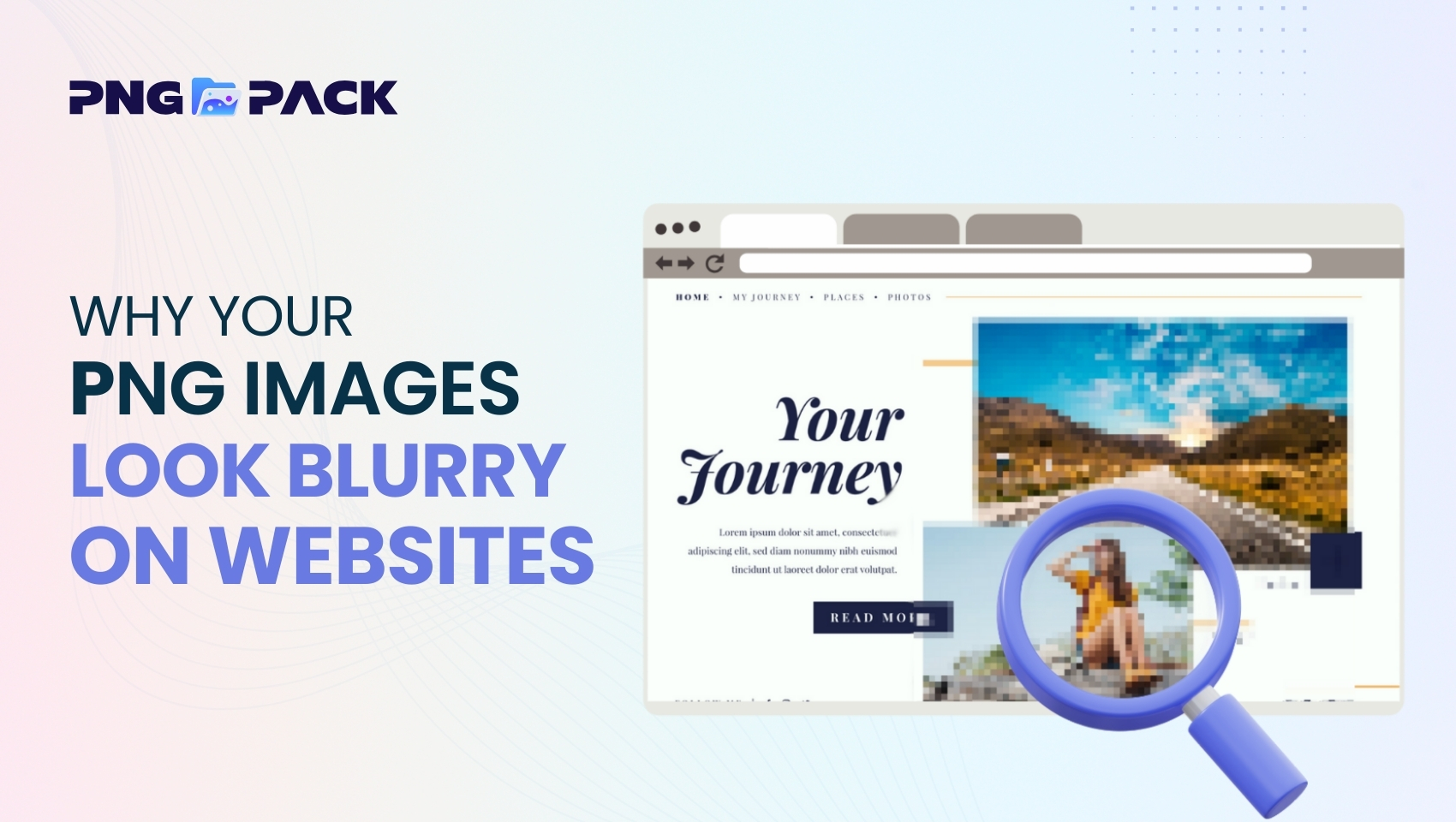
PNG images are widely used on websites because they offer high quality and transparent backgrounds, making them ideal for logos, icons, and design elements. However, many website owners and designers notice that their PNG images don’t always look as sharp as expected once they are uploaded online. Instead of appearing clear and professional, the images may look blurry, soft, or pixelated.
Blurry PNG images can negatively affect a website’s visual appeal, reduce user trust, and make a design look unpolished. In most cases, this problem isn’t caused by the PNG format itself but by how the images are prepared, optimized, or displayed on the website. In this article, we’ll explore the most common reasons why PNG images look blurry on websites and explain how you can fix these issues to ensure your images stay crisp and high quality.
Low-Resolution PNG Images
One of the main reasons PNG images look blurry on websites is low resolution. Resolution refers to the amount of pixel data in an image. When a PNG image is created or downloaded at a small size but displayed larger on a webpage, it doesn’t have enough pixels to maintain sharpness. This causes edges to appear soft and details to become unclear.
For example, a PNG that is 300×300 pixels will look blurry if displayed at 800×800 pixels. The browser stretches the image, filling in missing pixels, which reduces clarity. This is especially noticeable on logos, icons, and text graphics, where sharpness is crucial for a professional look.
Low-resolution PNGs also perform poorly on high-resolution or Retina displays. These screens pack more pixels per inch, so images need higher resolution to appear crisp. A PNG that looks fine on a standard screen may appear blurry or fuzzy on modern devices if it’s not high-resolution.
Image Scaling and Resizing Issues
Another common reason PNG images appear blurry on websites is incorrect scaling or resizing. When a PNG image is uploaded at a smaller size and then enlarged using CSS, HTML, or page builders, the browser has to stretch the image to fit the display. This stretching reduces sharpness because the browser is essentially “guessing” the missing pixel information, which leads to blurred edges and a loss of detail.
This problem is especially noticeable in responsive designs, where images may need to adjust to different screen sizes. If the original PNG isn’t optimized for larger displays, it can quickly appear soft or fuzzy on desktop monitors, tablets, or high-resolution screens.
Best Practice: Always use PNG images at their intended display size or slightly larger. Avoid scaling up small images, and consider preparing multiple sizes for different screen resolutions to maintain crisp, professional visuals across all devices.
Wrong PNG Compression
Although PNG is a lossless image format, over-compressing PNG files can still affect image quality. Many optimization tools reduce file size to improve website loading speed, but aggressive compression can remove important pixel details. The result is a PNG that may load quickly but appears soft, pixelated, or blurry on your website.
This issue is particularly noticeable in logos, icons, and graphics with fine details, where clarity is essential. While it’s important to optimize images for faster loading, too much compression can compromise visual quality, defeating the purpose of using a high-quality PNG in the first place.
Best Practice: Use a balanced compression approach that reduces file size without sacrificing sharpness. Tools like TinyPNG or Adobe Photoshop allow you to optimize PNGs while maintaining visual integrity, ensuring your images look crisp and professional.
Incorrect Image Format Choice
While PNG is a popular and versatile image format, it is not always the ideal choice for every type of image. PNG excels at handling logos, icons, text graphics, and images with transparent backgrounds, because it preserves sharp edges and supports transparency without losing quality.
However, using PNG for large photographic images or complex images with many colors can create problems. PNG files for such images are often much larger than necessary, which can slow down website loading times. Additionally, some browsers may struggle to render very large PNGs efficiently, and they can appear slightly softer compared to optimized photographic formats like JPG or WebP.
Choosing the wrong image format can therefore affect both visual quality and website performance. For example, using PNG for a full-screen photograph may make it unnecessarily heavy and slower to load, while using JPG or WebP would maintain clarity with a smaller file size.
Understanding when to use PNG versus other formats is key to keeping your website fast and visually sharp. PNG should primarily be reserved for graphics that require transparency or sharp edges, while photos and high-detail images often perform better in JPG or WebP formats.
Browser or CSS Rendering Problems
In some cases, blurry PNG images aren’t caused by the image itself but by how browsers render them. Modern websites often use CSS and responsive design techniques to adjust images for different devices, but certain CSS properties or scaling methods can unintentionally reduce image clarity.
For instance, using CSS to stretch or shrink images with the width, height, or transform properties can force the browser to interpolate pixels, making edges appear soft or slightly blurred. This is particularly noticeable on high-resolution displays or when images are scaled differently across desktop, tablet, and mobile screens.
Additionally, different browsers may render the same PNG image differently due to variations in anti-aliasing and scaling algorithms. Even a high-quality PNG can look less sharp if the layout or CSS isn’t optimized properly. To maintain crisp PNG visuals, it’s important to ensure that images are displayed at their native resolution whenever possible, and that CSS scaling is applied carefully, especially in responsive or dynamic layouts.
Transparency Edge Problems
Even high-quality PNG images can sometimes appear blurry around the edges, especially when they include transparency. This usually happens due to anti-aliasing, a process that smooths the edges of an image, or poor background blending, where the PNG was designed for a specific background but is displayed in a different color or pattern.
When a transparent PNG is placed on a background it wasn’t intended for, the edges may appear soft, faded, or slightly blurred. This effect is particularly noticeable on logos, icons, and text-based graphics, where clean edges are essential for a professional appearance.
Ensuring that transparent PNGs are high quality and have clean edges is crucial. It’s also important to test images on different background colors to make sure they maintain sharpness and clarity across various website layouts.
Using Low-Quality or Fake PNG Files
Another major cause of blurry or unprofessional-looking PNG images is using low-quality or fake PNG files. Many free PNGs available online claim to have transparent backgrounds but are poorly edited, compressed, or auto-generated, resulting in jagged edges, loss of detail, or improper transparency.
Using these files can make even the best-designed website look unpolished. This is especially problematic for businesses or professional websites, where image quality directly affects credibility and user experience. To avoid these issues, it’s best to download PNG images from trusted sources that offer real transparency and high resolution, such as PNGPack.com. High-quality, properly edited PNGs ensure crisp edges, vibrant colors, and a professional look for your website visuals.
Conclusion
Blurry PNG images can make even well-designed websites look unprofessional and reduce user trust. Common causes include low resolution, improper scaling, over-compression, wrong format choices, transparency edge issues, and low-quality files. By understanding these factors and using images correctly, you can ensure your website visuals stay sharp, clear, and professional across all devices.
One of the easiest ways to avoid blurry PNGs is to use high-quality, properly edited images from trusted sources. PNGPack offers a wide range of free, high-resolution PNG images with transparent backgrounds, making it simple to enhance your website visuals while maintaining clarity and professionalism.